
AudioCodes Bot API
Live Hub connects to a bot that you build by using the Bot API. Configure your bot according to the requirements defined in the Bot API documentation.
The Bot API supports two modes. Select the mode that you want to use when you create the bot connection:
| Mode | 'Bot connection API type' | Based on | Suits |
|---|---|---|---|
chat
|
HTTP mode | HTTP request and response | Simple, stateless bots, such as one hosted in AWS Lambda |
streaming
|
WebSocket mode | A bi-directional WebSocket | Stateful bots. Adds proactive messages from the bot and audio streaming |
Create the bot connection
Create a bot connection in Live Hub. Specify the bot's URL, the API mode that the bot uses, and its authentication settings.
To create a bot connection:
-
In the Navigation pane, select Bot connections, and then click Add new voice bot connection or Add new assist bot connection.
Click Close at any point to abandon the connection.
-
Select AudioCodes Bot API, and then click Next.
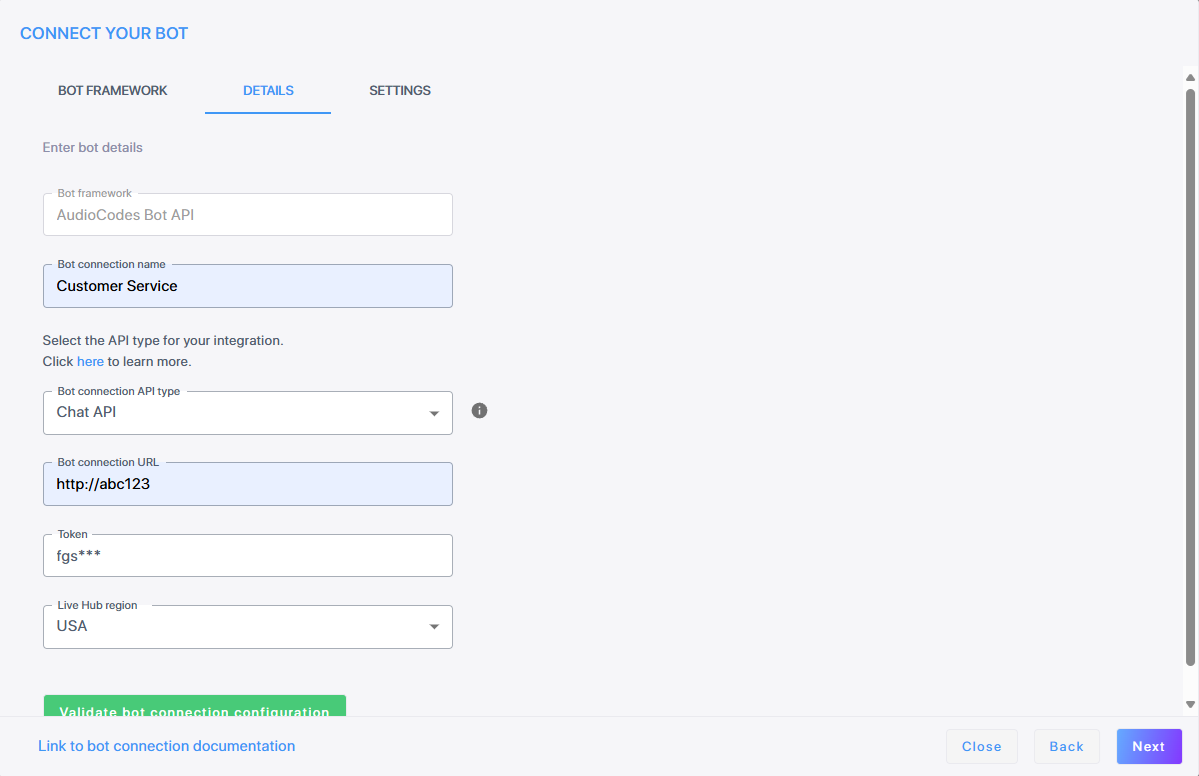
-
In the 'Bot connection name' field, enter a name for the bot connection.
-
From the 'Bot connection API type' drop-down list, select HTTP mode or WebSocket mode.
-
In the 'Bot URL' field, enter the bot's URL for creating new conversations, as defined in the Bot API.
-
From the 'Live Hub region' drop-down list, select the region your Live Hub voice infrastructure runs in. See Global region support.
-
Under 'Authentication', from the 'Authentication method' drop-down list, select one of the following:
- No authentication: There is nothing more to set.
- Permanent token: In the 'Token' field, enter the bot access token. See Security and authentication.
- OAuth2.0: Live Hub uses the OAuth client credentials flow to obtain an access token and sends it to your service. Fill in 'OAuth token URL', 'OAuth client ID', 'OAuth client secret', and optionally 'OAuth scopes'.
-
Click Validate bot connection configuration to check the URL and token.
-
Click Next.
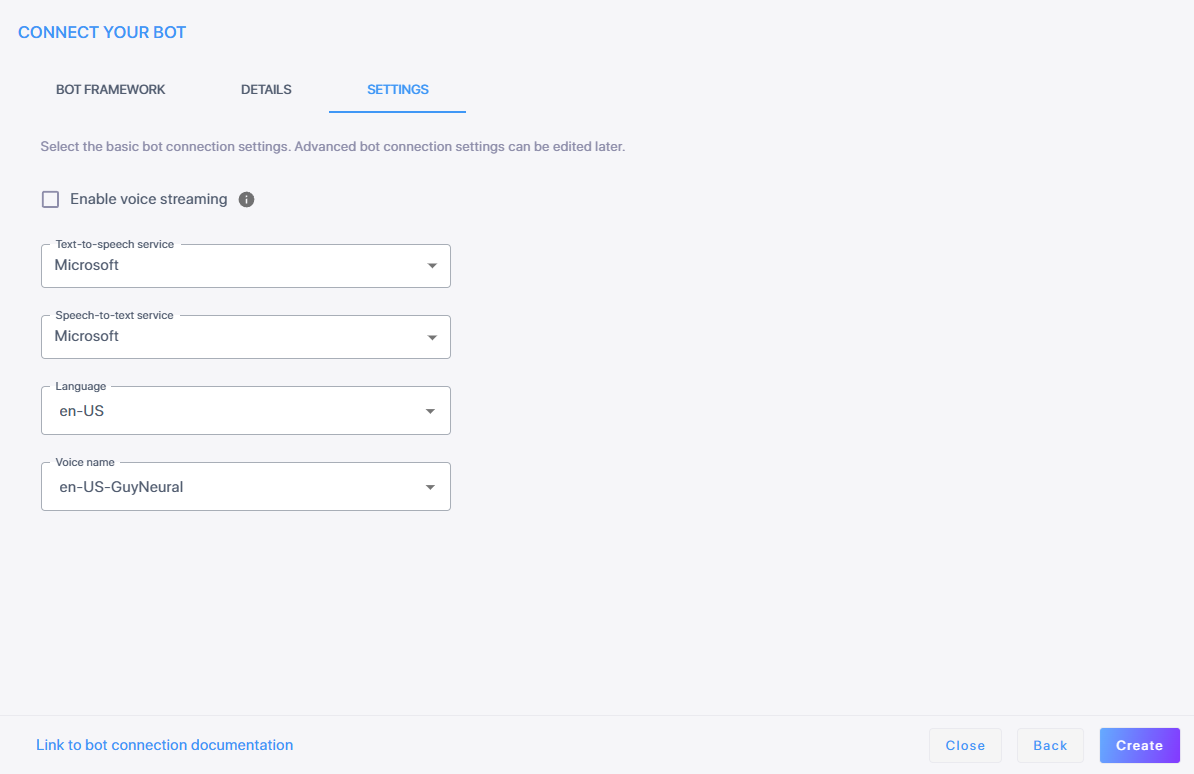
-
This step applies to
streamingmode only. To have Live Hub stream voice directly between the bot and the caller instead of exchanging text, select the 'Enable voice streaming' check box, and then set 'Language', leaving it as Any or selecting a specific language.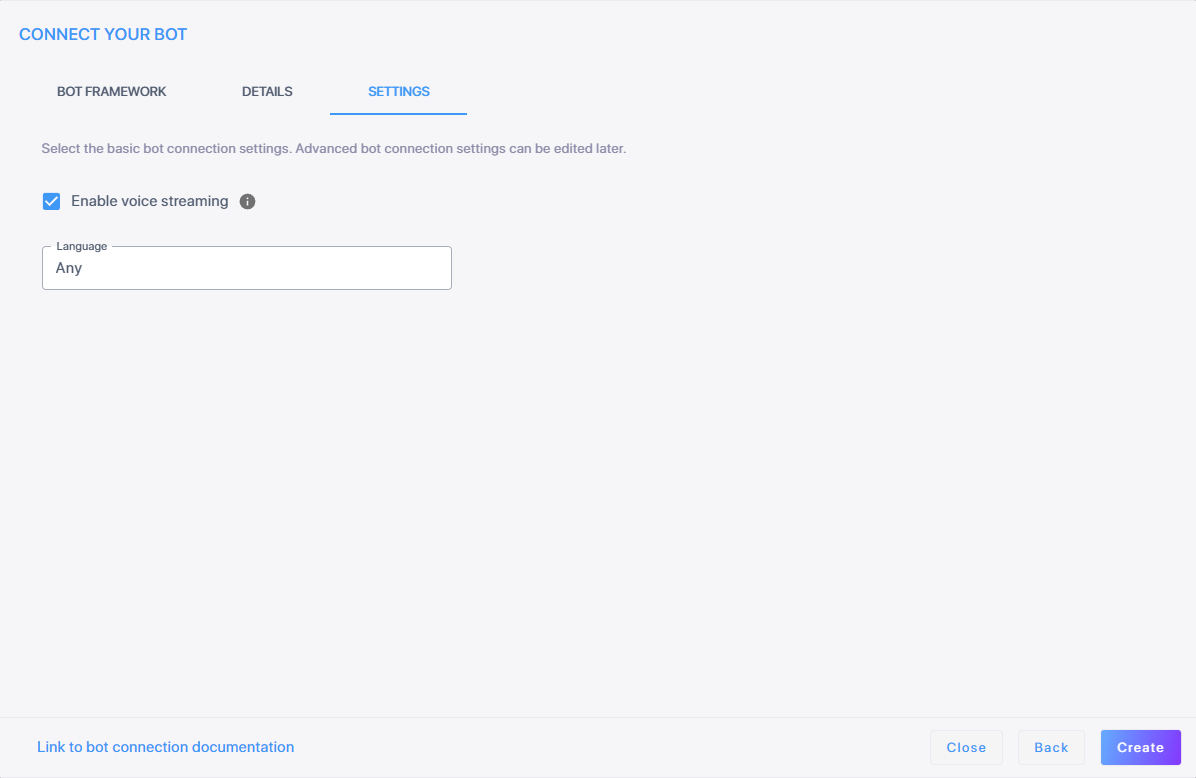
With voice streaming on, the speech-to-text and text-to-speech fields disappear, since the bot receives and returns audio itself.
-
Unless you enabled voice streaming, select a speech-to-text service and a text-to-speech service.
-
Click Create.